Fields: one line about where to look
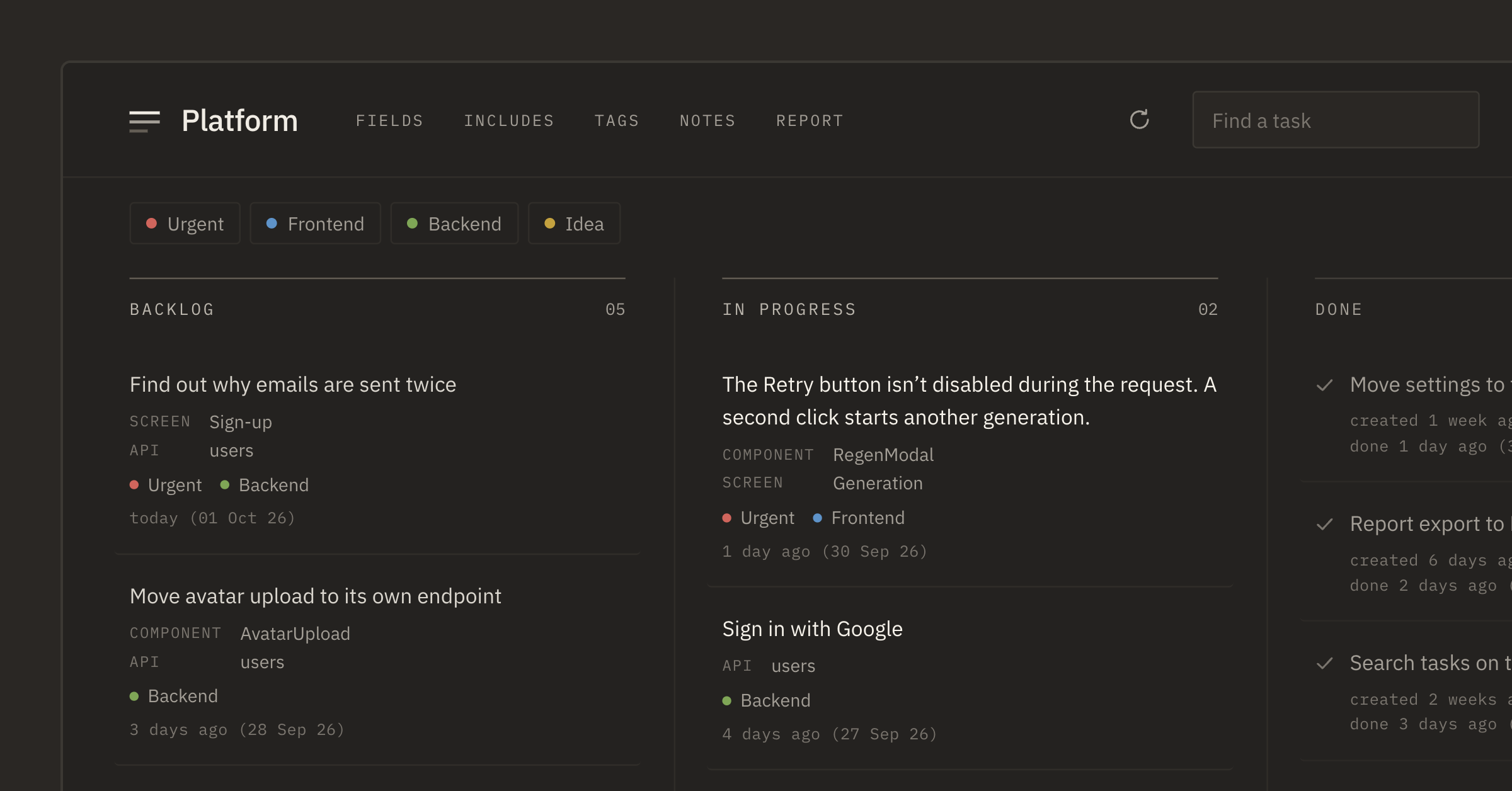
When a colleague asks "where is that?", we answer without thinking: "in sign-up, where the confirmation email goes out". This knowledge feels obvious, so it often doesn't make it into the task. A colleague would ask; an agent starts searching on its own.
A one-line task
The "Platform" backlog had a task: "Find out why emails are sent twice". Users complained that the email confirmation arrived twice in a row. We knew where it happened: in the sign-up handler, in the users API. But the task was a single line.
The agent started conscientiously. It read the mailing module, found a retry on network errors and decided that was the cause. It added a duplicate check right into the queue, for all emails at once.
But the cause was elsewhere: on one of its paths the sign-up handler called the send twice. The fix in the queue would have hidden the symptom and changed how every other email behaves. We rolled it back and spent another round explaining where to look.
The change itself was neat, just in the wrong place. And we knew where to look but didn't write it down.
Fields
A field in Tascue is a key and a set of values. The key is a part of your project: "Component", "Screen", "API". You set up the values once on the Fields tab, and in a task you pick from the list.
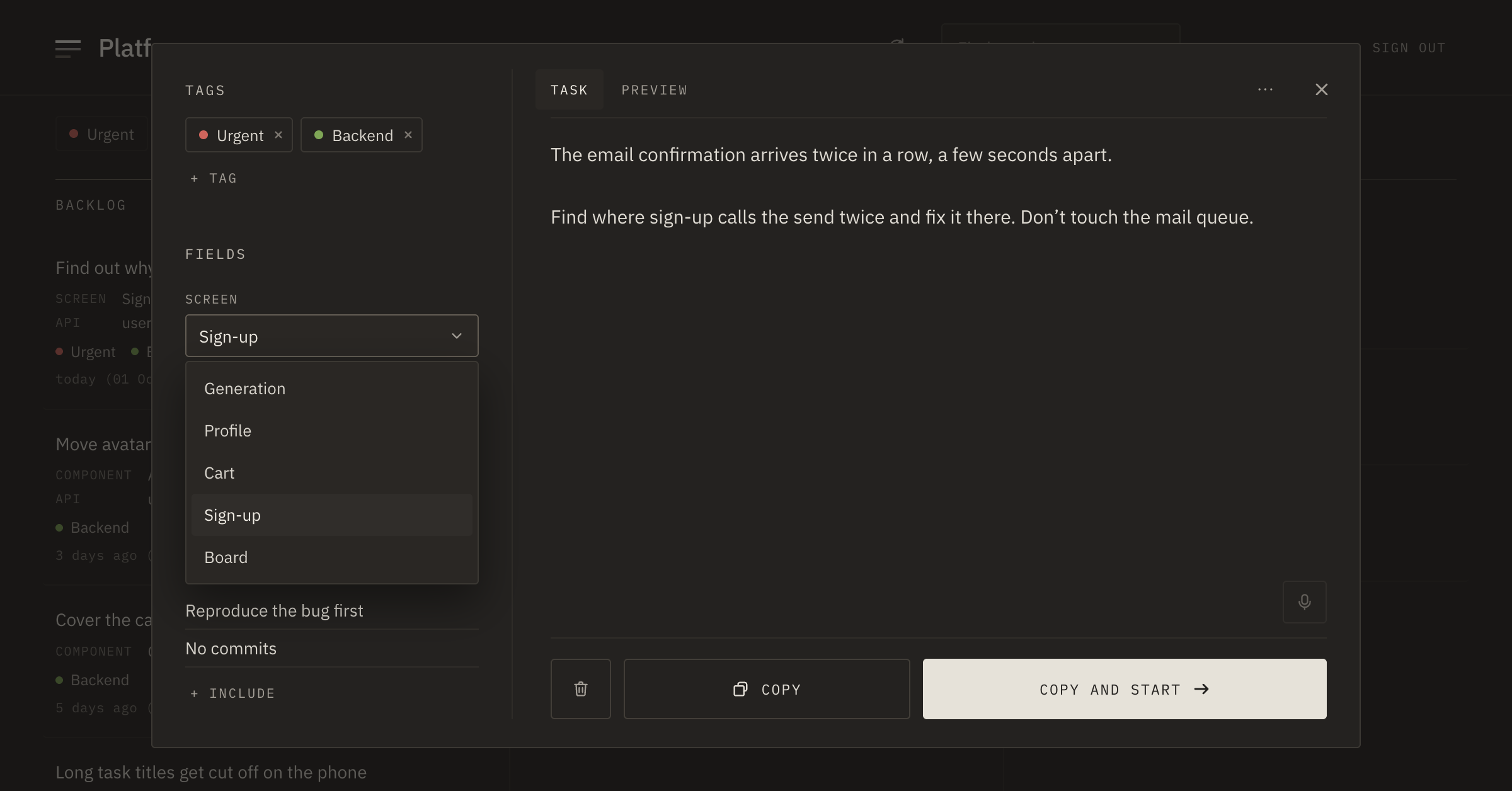
The chosen value goes to the start of the prompt, before the task text. For the emails it's two lines: "API: users" and "Screen: Sign-up". That's where the agent starts its search.
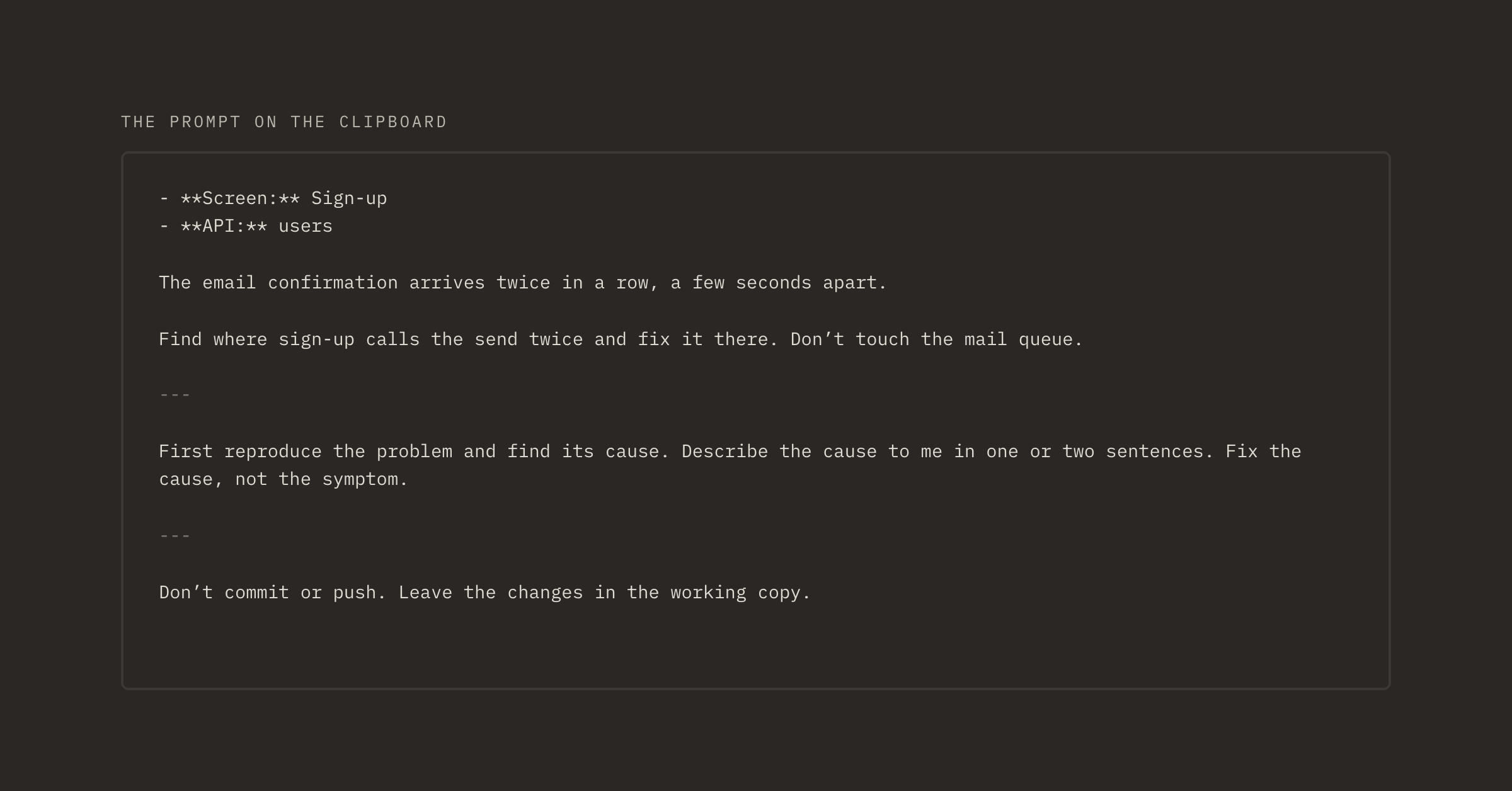
A field also shows which part of the project will change. If the task says "API: users" and the agent is about to edit something outside it, you'll see it in its report and can ask why right away.
Which fields to set up
Start with what you usually tell a colleague first. In "Platform" we have three fields: "Component" (RegenModal, CartTotal…), "Screen" and "API". In other projects these can be services, pages or the task type.
You don't need to come up with all the values in advance: you can type a new one right in the task. And there's no point filling fields in just for order: "Screen: Settings" on a database migration task only confuses.
Field values are shown on board cards too. You can see at once which tasks are about the same component, and it's convenient to give them to the agent one after another.
What changed
We rewrote the email task: "API: users", "Screen: Sign-up" and two sentences about what the user sees. The agent found the double call in a few minutes and fixed it in one place.
Since then, when we write a task, we pick where to look right away.